[카테고리:] notion post

  • Best 5 Notion Templates You Should Try in 2025

    Best 5 Notion Templates You Should Try in 2025

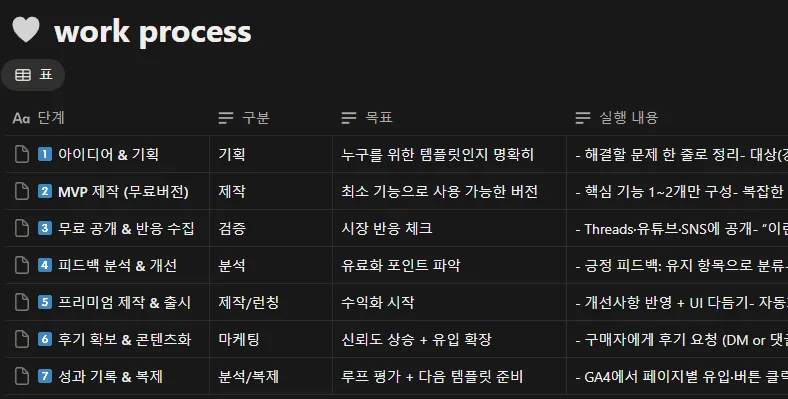
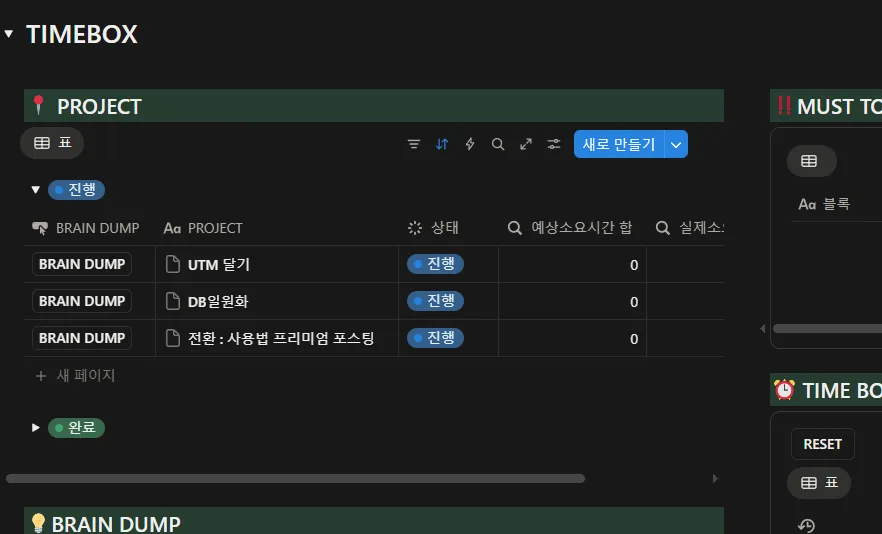
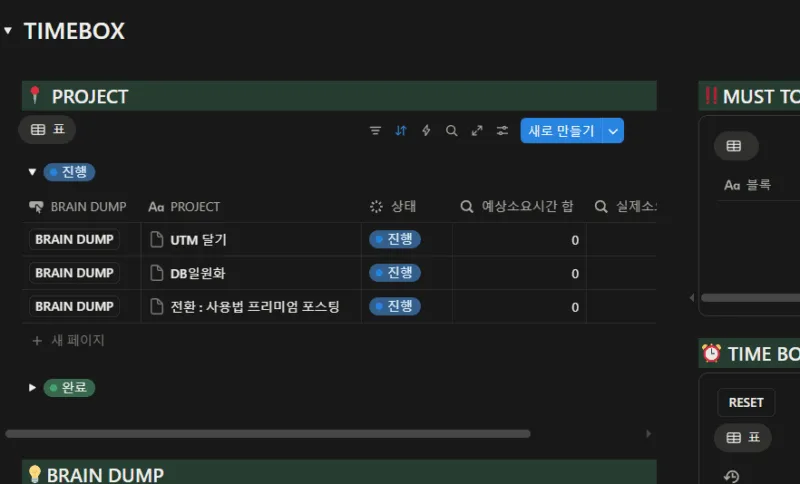
    notion templates example : time box

    Notion has become the go-to tool for organization, productivity, project tracking, and even personal life management.
    But as the ecosystem grows, so does the confusion: Which notion templates are actually worth using?
    Which ones will genuinely improve your workflow, not just look good on screenshots?

    To save your time, we curated the Top 5 Notion templates that consistently deliver real results.
    This list combines:

    • High user satisfaction
    • Practical structure (not overly complex)
    • Minimal database usage
    • Easy customization
    • Long-term usability
    • Beginner-friendly workflows

    Let’s dive into the best templates you should try in 2025, with detailed breakdowns, examples, pros/cons, and use cases. first, watch this example : 노션 타임박스


    1️⃣ Personal Productivity Templates

    1. Ultimate Daily Planner — The Cleanest Way to Start Your Day

    Most planners fail because they add unnecessary friction: too many databases, too many views, too many rules.
    The Ultimate Daily Planner focuses on one thing only: keeping your day simple and clear.

    What’s inside

    • Daily agenda board
    • Time-blocking (optional)
    • Priority ranking (P1, P2, P3)
    • Quick Notes section
    • Daily reflection (3 prompts)
    • Weekly overview page

    Why it works

    • No steep learning curve
    • Easy to duplicate for each week
    • Works with both beginners and busy professionals
    • Minimal design ensures no visual clutter

    Use case example

    You wake up → open the dashboard → add top 3 priorities → drag tasks into time blocks → finish the day with a quick reflection.
    Simple habits, strong impact.

    Pros

    ✔ Extremely lightweight
    ✔ Perfect for students & freelancers
    ✔ Easy to mix with other templates

    Cons

    ✘ Not ideal for complex projects
    ✘ Lacks long-term planning features by default


    2. Second Brain Lite — Capture, Organize, and Expand Your Knowledge

    A simplified PARA-based (Projects–Areas–Resources–Archive) digital brain.
    Unlike full Second Brain setups that overwhelm beginners, this version keeps only what’s essential.

    What’s inside

    • Quick capture inbox
    • Tasks linked to projects
    • Long-term projects area
    • Resource library (articles, videos, PDFs, notes)
    • Archive system

    Why it works

    • Perfect balance of structure + flexibility
    • Easy to scale as your life becomes more complex
    • Helps reduce mental clutter

    Use case example

    You watch an interesting YouTube video → save it to your Resource Library → tag it → link it to an ongoing project like “Fitness,” “Startup Ideas,” or “Career Prep.”

    Pros

    ✔ Centralized knowledge hub
    ✔ Great for creators, writers, researchers
    ✔ Ideal “foundation system” for beginners

    Cons

    ✘ Slightly more complex than a basic planner
    ✘ Requires occasional maintenance


    2️⃣ Work & Project Management Templates

    3. Simple Project HQ — A True Minimalist Project Management System

    Notion gets messy fast when project templates include 10+ databases.
    Simple Project HQ fixes this with a clean 3-database structure:

    • Projects
    • Tasks
    • Notes

    What’s inside

    • Kanban view for task progress
    • Project overview page
    • Priority + deadline tracking
    • Meeting notes connected to tasks
    • Progress indicator

    Why it works

    • No unnecessary automations
    • Perfect for solo founders, agencies, small teams
    • Gives you clarity at a glance

    Use case example

    A marketing freelancer can track:
    Campaigns → Tasks → Client meetings → Deliverables
    Everything is connected but never overwhelming.

    노션 타임박스 템플릿

    Pros

    ✔ Super clean layout
    ✔ Highly customizable
    ✔ Easy to onboard teammates

    Cons

    ✘ Not enough for enterprise teams
    ✘ No built-in timeline/roadmap unless added manually


    4. Content Creator Dashboard — A Complete Publishing Workflow in One Page

    If you create content on multiple platforms, this template is a must-have.
    It transforms scattered ideas into a stable workflow.

    What’s inside

    • Content ideas board
    • Script/outline templates
    • Publishing checklist
    • Analytics tracker
    • Hashtag library
    • Sponsorship CRM
    • Multi-platform content calendar

    Why it works

    • Covers the entire cycle: idea → creation → publishing → analytics
    • Cuts planning time by more than 50%
    • Works for YouTube, TikTok, blogs, Instagram, and newsletters

    Use case example

    A YouTuber can:
    Plan scripts → track upload dates → manage sponsors → monitor views → generate ideas—all from a single dashboard.

    Pros

    ✔ Real-world workflow support
    ✔ Helps maintain consistency
    ✔ Great for solo creators or small teams

    Cons

    ✘ Heavier than standard templates
    ✘ Requires initial setup for analytics


    3️⃣ Life & Finance Templates

    5. Smart Budget Tracker — Your Money, Finally Organized

    Most budgeting templates feel like complicated spreadsheets.
    Smart Budget Tracker focuses on clarity:

    • Month → Income → Expenses → Categories → Summary

    What’s inside

    • Monthly overview
    • Income/expense categories
    • Graphs (if needed)
    • Savings goals
    • Alerts for overspending
    • Expense notes (receipts, tags, screenshots)

    Why it works

    • Makes budgeting sustainable
    • Simple enough to maintain every month
    • Works well for couples or individuals

    Use case example

    You can track:

    • Rent
    • Food
    • Subscriptions
    • Transportation
    • Savings goals
      …all with automatic monthly summaries.

    Pros

    ✔ Beginner-friendly
    ✔ Supports habit building
    ✔ Clean design & very customizable

    Cons

    ✘ Not suitable for business financials
    ✘ Doesn’t include tax tracking


    Extra: Why These 5 Notion Templates Work So Well (The Notion Philosophy)

    1. Minimal databases = more clarity

    Most users abandon templates because they are too complex.
    These five rely on minimum moving parts.

    2. Clear workflow = long-term habit formation

    Every template supports a daily/weekly repeatable routine.

    3. Easy customization = long lifespan

    Nothing is locked. Beginners can adjust layouts as needed.

    4. Visual + functional balance

    Aesthetics matter. Clean dashboards reduce friction significantly.


    Bonus Section: How to Choose the Right Template for YOU (how to choose templates in notion for beginners)

    Choose based on your instant need

    • Want to manage your day? → Daily Planner
    • Want to organize your mind? → Second Brain Lite
    • Want to manage work? → Project HQ
    • Want to publish content? → Creator Dashboard
    • Want to save money? → Budget Tracker

    Choose based on your personality

    • “I want simple.” → Daily Planner / Project HQ
    • “I want organized knowledge.” → Second Brain Lite
    • “I want to scale my digital workflow.” → Creator Dashboard

    Final Thoughts

    Choosing the right template can dramatically transform the way you work, learn, and create.
    But the best templates are always the ones that are simple, flexible, and built for real life — not just aesthetic screenshots.

  • Notion Travel Template: Plan Your Entire Trip in One Place

    how to plan travel with notion

    Organizing a trip can be overwhelming — flights, hotels, schedules, packing lists, and budgets all scattered across different apps. A Notion travel template solves this by bringing everything together in one clean, customizable system.

    1. Why You Should Use Notion for Travel Planning

    Most people plan their trips using multiple apps: calendars for dates, Google Maps for places, email for bookings, notes for checklists, and spreadsheets for budgets. This fragmentation easily leads to confusion. Notion eliminates that mess by letting you build a central hub where all trip details stay connected and easy to access.

    A well-structured Notion setup helps you:

    • Collect travel ideas, links, and locations
    • Store flight, hotel, and transport information
    • Organize a daily itinerary
    • Manage your packing checklist
    • Track expenses and budgets
    • Share plans with friends or partners

    It becomes a single source of truth for every part of your trip, minimizing stress and maximizing clarity.

    2. What a Notion Travel Template Typically Includes

    A strong 여행 템플릿 is more than a simple page — it’s a structured workspace designed for clarity and ease of use. Although layouts vary, most effective templates include the following components:

    Trip Overview

    Your main dashboard displaying destination, travel dates, budget, and key notes. This is where you get a quick snapshot of your entire trip.

    Itinerary Planner

    A day-by-day plan with activities, addresses, maps, and schedules. You can embed Google Maps, save restaurant options, and link detailed notes for each location.

    Booking & Reservation Tracker

    Store confirmations for flights, hotels, trains, buses, tours, or car rentals — all in one place. No more digging through emails to find the booking code.

    Packing Checklist

    Reusable lists categorized by essentials, documents, clothing, electronics, and more. This helps prevent last-minute stress before leaving.

    Budget or Expense Log

    Track estimated vs. actual spending. This is especially useful for international trips or longer adventures.

    Shared Page for Group Travel

    If you’re traveling as a couple or with friends, a shared Notion page keeps everyone aligned on schedules and responsibilities.

    3. How to Use a Notion Travel Template Effectively

    Once you duplicate a template into your workspace, you can personalize it to fit your destination and travel style. Here’s a simple process to follow:

    Step 1: Customize the Dashboard

    Replace the sample destination, trip dates, images, and budget notes. Clean layouts work best — avoid overwhelming your dashboard with too many widgets.

    Step 2: Fill in Your Details

    Add your flights, accommodation info, contact numbers, and important links. Populate the itinerary with planned activities or must-visit places.

    Step 3: Use It During the Trip

    Open it on your phone as you travel. Check reservations, view directions, tick off packing items, and adjust plans on the go.

    Step 4: Turn It Into a Travel Journal

    After the trip, record highlights, upload photos, and store memories. Notion’s flexibility makes it perfect for long-term journaling or creating a travel archive.

    With the right structure, Notion becomes more than a planning tool — it becomes your complete travel companion, from preparation to the final memory.

  • How to make  Your Personal Notion CRM (Customer Relationship Manager)

    How to make Your Personal Notion CRM (Customer Relationship Manager)

    Managing relationships can be messy — dozens of people to remember, scattered messages, and forgotten follow-ups. What if you could centralize all of this in one clean, customizable system? With Notion, you can turn your workspace into a full-fledged personal CRM that keeps your connections organized and actionable.

    🌱 Why You Need a Personal Notion CRM

    We often associate CRM tools with businesses tracking customers or leads. But for freelancers, entrepreneurs, and creators, a personal CRM is just as powerful. It helps you maintain genuine relationships with clients, partners, and friends without feeling overwhelmed.

    Notion makes this possible because it’s flexible enough to become your relationship hub — combining notes, reminders, and automation in one space.

    Notion CRM Example. with free template

    🧩 Step 1: Create a Simple Contact Database

    Start by creating a new Notion database titled Contacts. Each row represents a person, and properties might include:

    • Name
    • Company or Role
    • Last Contacted
    • Next Follow-up Date
    • Relationship Type (Client, Friend, Partner, etc.)

    By using filters or views, you can easily see who needs a message this week or who you haven’t spoken to in months. This turns Notion into a visual relationship map.

    ⚙️ Step 2: Link Notes and Interactions

    Each contact can link to a sub-page where you keep meeting notes, personal details, or shared ideas. Over time, this becomes a rich log of your relationship history. If you use Notion’s timeline or gallery view, it feels like a social feed of your real-world connections.

    💡 Bonus Tip: Automate Reminders

    With Notion’s integrations (like Make.com or Zapier), you can automate reminders for follow-ups. For example, once you set a Next Follow-up Date, Notion can ping you automatically when it’s time to reconnect.

    🚀 Step 3: Use Templates to Save Time

    Creating the structure is easy — but maintaining it is where most people fall off. Using a ready-made Notion CRM template helps you skip the setup and focus on the habit.

    We’ve built one designed exactly for this purpose: a clean, minimal, and automation-ready dashboard. You can explore it here 👉 노션 무 템플릿.

    💬 Final Thoughts

    Relationships are the backbone of every creative career — and a system like this ensures you don’t let them slip through the cracks. By turning Notion into your personal CRM, you’ll not only stay connected but also build stronger, more intentional networks.

    Start simple, automate where it counts, and let your Notion workspace do the remembering for you.

  • Notion vs Obsidian: Which Is Better for Knowledge Management?

    notion vs obsidian posting thumbnail.

    Both Notion and Obsidian are powerful tools for organizing your thoughts and building a personal knowledge base. But which one truly fits your workflow? Let’s explore their strengths and weaknesses in detail.

    In today’s world of digital note-taking and personal knowledge management, two names stand out — Notion and Obsidian. Both tools promise to help you organize your ideas, projects, and learning systems. Yet, they approach the concept of knowledge differently. In this article, we’ll compare Notion vs Obsidian, helping you decide which tool best suits your workflow and mindset.

    🧠 Core Philosophy and Design

    Notion focuses on being an all-in-one workspace. It combines notes, tasks, databases, and dashboards into one visual ecosystem. You can create interconnected pages, team spaces, and templates for almost any purpose — from project planning to personal journaling.

    Obsidian, on the other hand, follows the “local-first” and “markdown-based” philosophy. Every note is stored on your device as a markdown file, and connections between notes are visualized through backlinks and graphs. It’s a tool built for those who think in networks rather than lists.

    ⚙️Notion vs Obsidian Key Features Compared

    FeatureNotionObsidian
    StorageCloud-basedLocal markdown files
    CollaborationExcellent for teamsPrimarily solo use
    CustomizationFlexible page structureExtensive plugin ecosystem
    Offline AccessLimited (needs sync)Full offline support

    📚 Which One Is Better for Knowledge Management?

    It depends on how your brain works. If you prefer structured pages, visual databases, and project integration — Notion wins. It’s ideal for those who want one workspace for tasks, notes, and knowledge combined.

    But if you think in links and relationships, Obsidian may feel more natural. It’s perfect for building a second brain — a web of interconnected thoughts that grows organically over time.

    🔗 How to Combine Both Tools

    Many power users actually use both. They take quick, atomic notes in Obsidian for speed and privacy, then store polished ideas or project outcomes in Notion for sharing and collaboration. This hybrid approach gives you the best of both worlds — flexibility plus structure.

    🚀 Explore More Ready-to-Use Notion Setups

    If you’re leaning toward Notion, you can explore free productivity dashboards and templates at 노션 무료 템플릿. They’re designed for seamless setup — whether you’re managing personal knowledge, travel planning, or team projects.

    💡 Final Thoughts

    Both Notion and Obsidian have unique strengths. Notion excels in collaboration and structure, while Obsidian shines in flexibility and deep thought linking. The best choice depends on your workflow — and sometimes, using both is the smartest move of all.

  • Notion API & Automation: From Beginner to 3 Advanced Use Cases

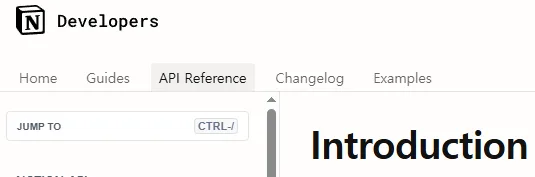
    notion API official introduction.

    Notion has evolved far beyond being just a note-taking app — it’s now a flexible workspace that powers entire workflows.
    With the release of the Notion API, creators, teams, and developers can now automate repetitive tasks, connect external tools, and turn Notion into a true productivity hub.

    In this post, we’ll explore how to use the Notion API and automation tools — from beginner-friendly setups to advanced integrations — so you can build your own connected system.

    🚀 Why Notion Automation Matters in 2025

    As teams rely on Notion for everything from project management to documentation, the need for automated synchronization grows.
    Instead of manually updating multiple apps, automation lets you:

    • Sync Notion with Google Sheets or Airtable
    • Trigger Slack notifications for new tasks
    • Auto-publish blog content from Notion databases

    Automation isn’t just about convenience — it creates consistency, prevents errors, and saves hours every week.


    🧩 Getting Started: Understanding the Notion API

    The Notion API provides developers with secure, REST-based endpoints that allow interaction with any Notion workspace.
    Here’s what you need to know to start:

    1. Create an Integration
      Go to Notion Developers and create a new integration.
      This gives you an internal integration token (API key).
    2. Share Your Database
      Open your Notion page → “Share” → Invite your integration → Done.
    3. Test the API
      Use curl or Postman to fetch data:

    curl 'https://api.notion.com/v1/databases/{database_id}/query' \ -H 'Authorization: Bearer YOUR_API_KEY' \ -H 'Notion-Version: 2022-06-28'

      💡 Pro tip: All Notion API data is returned as JSON.
      You can filter, sort, and format that data before sending it to other apps.


      🧠 No-Code Automations: Make (Integromat), Zapier & Pipedream

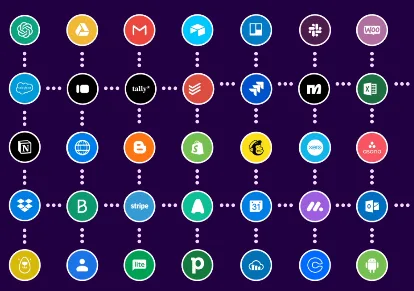
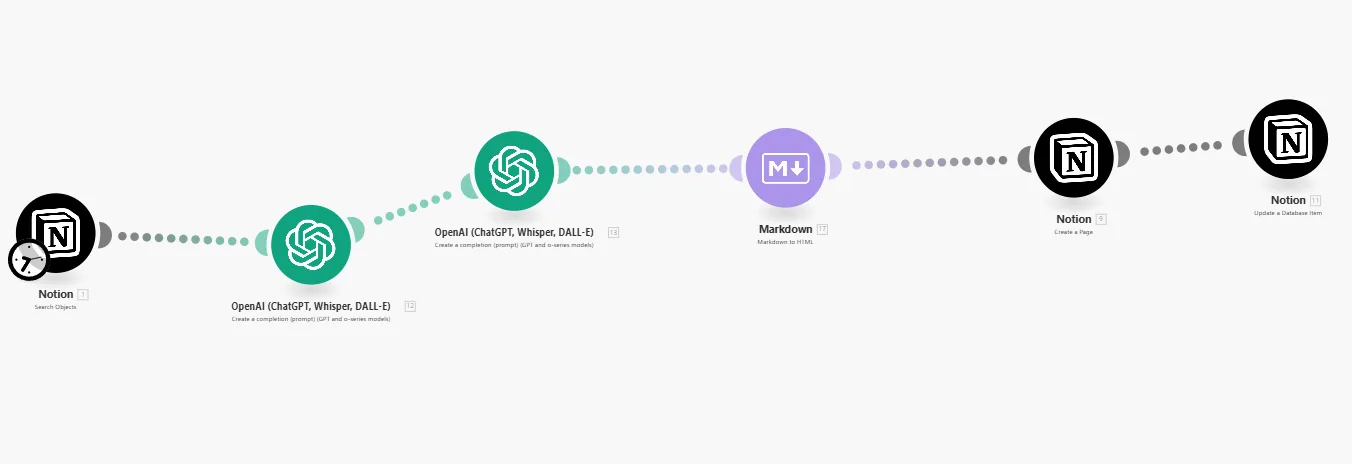
      WHAT is MAKE AI? - MAKE overview
      from : MAKE.COM

      Not a developer? No worries.
      You can still create powerful automations using no-code tools like Make, Zapier, or Pipedream.

      PlatformEase of UseCostFlexibilityIdeal For
      Make.com⭐⭐⭐⭐💰 AffordableHighVisual workflows
      Zapier⭐⭐⭐💸 ExpensiveMediumQuick setups
      Pipedream⭐⭐💸 Free tierVery HighDevelopers

      Example Workflow

      • Trigger: A new task is added in Notion
      • Action: Send a Slack message → Create a Google Calendar event
      • Result: Instant updates across tools — no manual copying needed.

      🔄 Intermediate Use Cases: Syncing Notion with External Apps

      Once you’ve built simple workflows, it’s time to connect systems at scale.
      Here are some real-world integrations:

      1. Notion ↔ Google Sheets Sync
        • Track project progress in both Notion and Sheets.
        • Schedule automatic hourly updates via Make.com.
      2. Notion → WordPress Auto-Publishing
        • Write your blog post in Notion.
        • Use Zapier or custom scripts to publish to WordPress automatically.
      3. Notion ↔ Airtable Dashboard
        • Combine Notion’s flexibility with Airtable’s analytics power.
        • Ideal for teams tracking performance metrics or campaign data.

      💻 Advanced Level: Using the Notion API Directly

      For advanced users, direct API scripting offers full control and custom flexibility.
      Here’s a simple Python example to update a Notion database item automatically:

      import requests
      
      url = "https://api.notion.com/v1/pages/{page_id}"
      headers = {
          "Authorization": "Bearer YOUR_TOKEN",
          "Notion-Version": "2022-06-28",
          "Content-Type": "application/json"
      }
      data = {
          "properties": {
              "Status": {"select": {"name": "Completed"}}
          }
      }
      response = requests.patch(url, headers=headers, json=data)
      print(response.status_code)
      

      This type of automation is perfect for syncing data from CRMs, time trackers, or custom dashboards.


      🧩 Combine It All: Build Your Own Connected System

      The real power of Notion automation comes from mixing no-code and code-based workflows.
      For example:

      • Use Make.com for easy triggers and actions.
      • Use the Notion API for deeper, conditional logic.
      • Store everything inside Notion databases — your central hub.

      Once this structure is in place, Notion becomes your second operating system — not just a workspace.


      🔗 Useful Resources & Templates


      ✅ Final Thoughts

      Automation gives Notion a whole new purpose — transforming it from a static note space into a dynamic productivity system.
      Whether you’re building a no-code workflow or a full-fledged API connection, start small, automate one thing, and scale up.

      Soon, you won’t just use Notion — you’ll have it working for you.

    1. Integrating Notion with make or Zapier: Automate Your Workflow Easily

      Integrating Notion with make or Zapier: Automate Your Workflow Easily

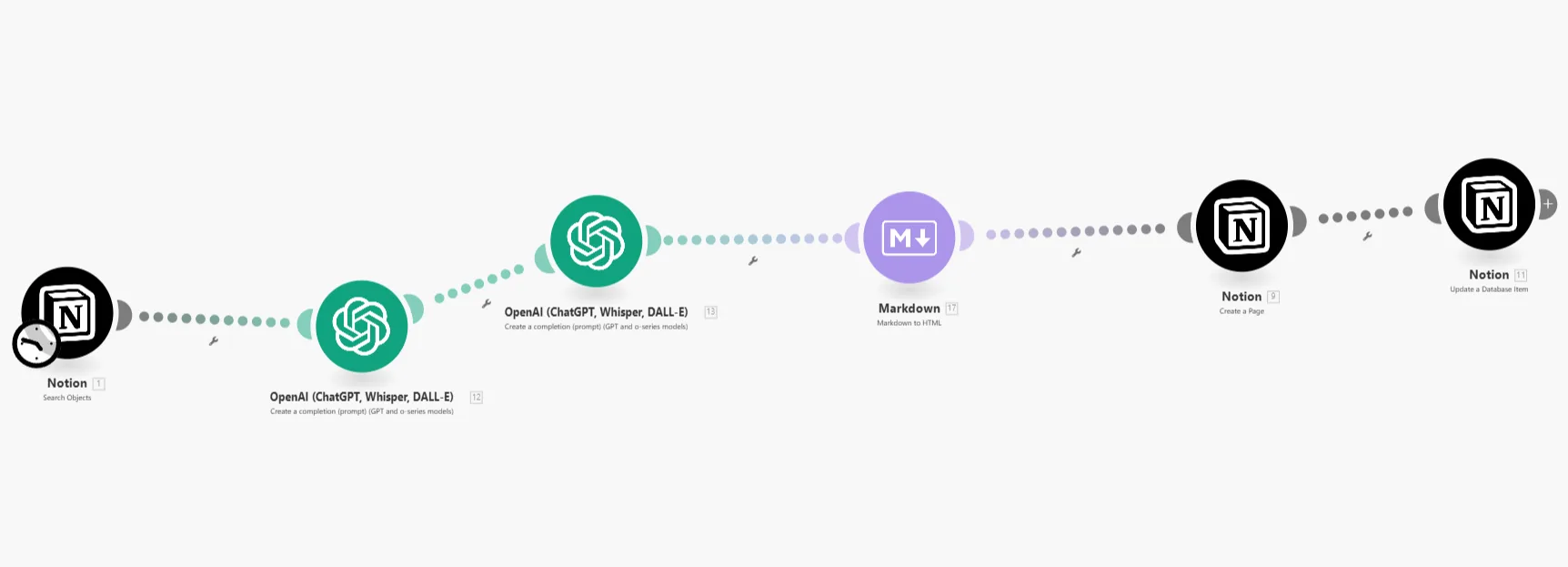
      notion with make

      Want to save hours of manual work? Learn how to integrate Notion with Make or zapier to automate tasks, sync data, and boost your productivity instantly.

      Notion is already one of the most powerful productivity tools available — but when you combine it with automation platforms like Zapier or Make.com (formerly Integromat), it becomes unstoppable. Imagine automatically adding new tasks, syncing Google Calendar events, or receiving Slack updates, all triggered by your Notion database. That’s the power of automation.

      ⚙️ Why Integrate Notion with Make or Zapier (Automation Tools)

      Notion doesn’t have built-in automation for every use case. By integrating with automation platforms, you can connect it with over 5,000 apps and services. Here’s why it matters:

      • Save time – Stop doing repetitive updates manually.
      • Keep data consistent – Sync information between tools automatically.
      • Boost productivity – Let Notion handle the background tasks while you focus on the real work.

      🔗 Popular Zapier Integrations for Notion

      Zapier is perfect for quick, no-code automation. Some of the most popular Zaps include:

      • Automatically add new Google Calendar events to Notion
      • Create Notion tasks when a new email arrives in Gmail
      • Save new form submissions (Typeform, Google Forms) directly into a Notion database
      • Sync completed tasks from Notion to your to-do app

      Each integration is easy to set up — just connect your Notion account, choose a trigger, and define the action.

      🤖 What You Can Do with Make.com (Integromat)

      If you want deeper customization or multi-step workflows, Make.com is a better option. Unlike Zapier’s linear setup, Make lets you build complex automation flows visually.

      • Connect Notion with multiple apps in one scenario
      • Schedule batch updates to your Notion database
      • Combine logic filters, routers, and loops for advanced automation

      For example, you can collect data from forms, clean it automatically, and insert it into Notion — all without lifting a finger.

      🚀 Start with a Ready-to-Use Automation Dashboard

      To make things easier, you can start with a pre-built dashboard that shows how automation fits into your Notion system. You can find free and customizable setups at 노션 무료 템플릿 공유 사이트 — designed for seamless integration with Zapier and Make.com. Duplicate it, connect your tools, and start automating today.

      💡 Final Thoughts

      Integrating Notion with Zapier or Make.com is like hiring a digital assistant that never sleeps. Once you set it up, repetitive work disappears, and your workflow runs on autopilot. Start small — automate one process — and you’ll quickly see how powerful Notion becomes when automation joins the game.

    2. Notion Travel Template: Plan Your Perfect Trip with Notion in 10 minuetes

      Looking for a simple way to organize your flights, hotels, and itinerary? Discover how a Notion travel template can help you plan stress-free trips and keep everything in one place.

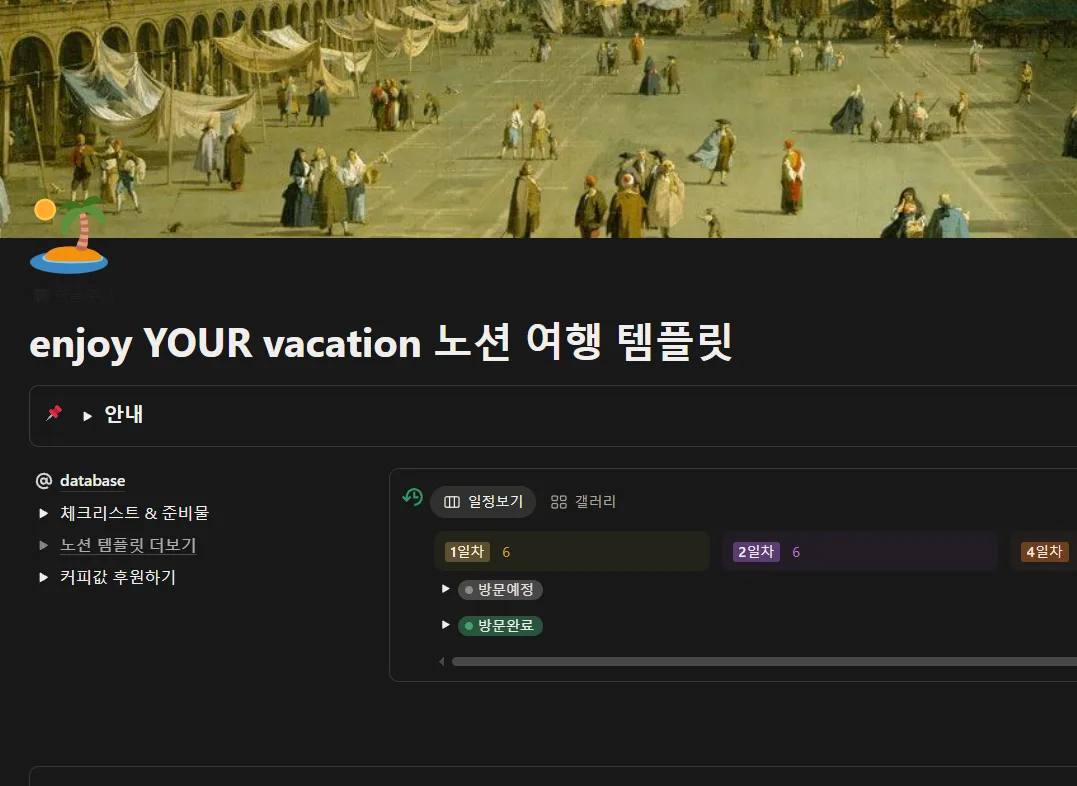
      notion travel templates : "enjoy your vacation:

      노션 여행 템플릿 (Click ME)

      Traveling should be exciting, not stressful. Yet many people find themselves overwhelmed by scattered flight details, hotel bookings, and checklists. That’s where Notion comes in. With a dedicated Notion travel template, you can bring all your plans into a single digital dashboard and enjoy a smoother journey.

      ✈️ Why Use Notion for Travel Planning?

      Unlike traditional spreadsheets or paper checklists, Notion offers a flexible system where you can combine calendars, databases, and notes. Whether you’re planning a weekend getaway or a long-term trip abroad, Notion helps you:

      • Track flights, hotels, and transport in one page
      • Build a day-by-day itinerary with maps and links
      • Share plans with friends or family instantly
      • Save packing lists that you can reuse for future trips

      🗺️ Features of a Great Travel Template

      A well-designed Notion travel template usually includes:

      • Trip Overview – Destination, dates, budget
      • Itinerary Database – Daily plans with times and notes
      • Checklist – Packing items, documents, essentials
      • Booking Tracker – Flights, accommodations, transport tickets

      With these sections in place, you can stop worrying about what’s missing and focus on enjoying your trip.

      🌍 Get Your Own Notion Travel Template

      If you’re ready to start planning smarter, try this tool today. It’s free to duplicate into your workspace and can be customized to fit your unique travel style. From short city breaks to long-term adventures, this template is built to save you time and reduce stress.

      🚀 Final Thoughts

      Notion is more than just a note-taking tool—it’s a powerful travel planner when paired with the right template. Start with a simple travel dashboard, adapt it to your needs, and make every trip more organized. And remember, planning with Notion means more time to focus on the journey itself.

    3. Notion Workflow Examples 5: Practical Systems to Boost Productivity

      Notion Workflow Examples 5: Practical Systems to Boost Productivity

      Explore real Notion workflow examples that help you organize tasks, manage projects, and streamline knowledge. Learn how to design a productivity system that lasts.

      notion workflow examples with MAKE

      A well-designed workspace can transform how you work, and nothing illustrates this better than real Notion workflow examples. Many users download templates without understanding the logic behind them. The result? Beautiful setups that collapse after two weeks. Instead of copying blindly, you need to see practical workflows and adapt them to your own life. Here are some effective Notion workflow examples that show how to use the tool for productivity, project management, and knowledge organization.

      Task Management Workflow

      One of the most popular Notion workflow examples is a task manager. At its simplest, you create a single database with tasks, due dates, and status. Instead of building separate systems for work and personal life, you use filters and views. For example, a “Today” view shows urgent tasks, while a “Someday” view keeps long-term goals visible but not distracting. The strength of this workflow is flexibility—you get one source of truth for everything you need to do.

      Project Planning Workflow

      Another useful model is project management. In these Notion workflow examples, each project has its own page connected to the master task database. You can break projects into milestones, track deadlines, and even embed documents or meeting notes. With linked databases, you see both the big picture and the fine details. This workflow works especially well for freelancers, students, or small teams managing multiple projects at once.

      Knowledge Management Workflow

      Notion is not just about tasks; it shines when used as a digital knowledge hub. In knowledge-focused Notion workflow examples, you build a database of articles, book notes, and research materials. By tagging them by topic, you can filter and connect related ideas. For instance, notes on productivity books can link directly to your task system, ensuring insights are applied instead of forgotten. This workflow makes Notion a second brain rather than just a to-do app.(노션 사용법)

      Content Creation Workflow

      For writers, bloggers, and creators, content pipelines are powerful Notion workflow examples. Start with an idea inbox where you capture raw thoughts. Then move ideas through stages like “Drafting,” “Editing,” and “Published.” By connecting tasks, deadlines, and notes, you transform random inspiration into consistent publishing. This workflow is ideal for anyone who needs structure in creative work.

      Review and Reflection Workflow

      The final category of Notion workflow examples is often overlooked: the review system. Without regular reviews, even the best setup fails. A weekly review page reminds you to clear your inbox, check project progress, and reflect on what worked. Adding a monthly reflection database helps you track growth over time. This workflow ensures your system doesn’t just store information but actually guides improvement.

      Final Thoughts

      These Notion workflow examples are not about perfection; they are about sustainability. The most effective workflows are the ones you actually use. Start simple, add complexity only when needed, and adapt ideas to your lifestyle. Notion becomes powerful when it fits your habits, not when it imitates someone else’s template. By studying and applying workflow examples like these, you’ll build a system that saves time, reduces stress, and truly supports your goals.

    4. Notion for Knowledge Management: How to Organize Ideas and Work Smarter 3tips

      Notion for Knowledge Management: How to Organize Ideas and Work Smarter 3tips

      Discover how Notion for knowledge management helps you organize ideas, capture notes, and streamline your workflow. Learn strategies for building a smarter system.

      A Notion(what is notion?) for knowledge management system is one of the most powerful ways to make use of this versatile tool. While many people use Notion for tasks or calendars, its real potential shows when you treat it as your personal knowledge hub. By organizing ideas, connecting notes, and keeping information searchable, you create a system that supports long-term growth and smarter decision-making.

      Notion for Knowledge Management
example

      Why Use Notion for Knowledge Management?

      When information is scattered across different apps, it becomes difficult to find and use later. A Notion knowledge management setup solves this by bringing everything into one place. Articles, book notes, project ideas, and meeting minutes can all live inside a single workspace. Instead of hunting through folders or apps, you can rely on one structured system.

      Building a Centralized Knowledge Hub

      The foundation of a good Notion for knowledge management workflow is a central database. Think of it as your digital library. Every note, reference, or research item enters here first. With tags and properties like topic, source, and relevance, you can filter and connect ideas easily. The more consistent you are, the more powerful the system becomes over time.

      Linking Ideas to Projects

      A common mistake is collecting notes without applying them. In a strong Notion knowledge management system, you connect references directly to ongoing projects. For example, a book summary about leadership can be linked to a project page where you’re planning a workshop. This ensures that ideas don’t just sit in storage but actively support your work.

      Review and Reflection Habits

      Even the best system fails if you never revisit it. A sustainable Notion for knowledge management workflow includes weekly or monthly reviews. During this time, you resurface old notes, archive outdated items, and highlight insights worth applying. This reflection step keeps the database alive and prevents information overload.

      Keeping It Simple and Sustainable

      The biggest risk is over-engineering. Too many properties, relations, or fancy dashboards can slow you down. A good rule of thumb: if updating your Notion knowledge management system feels like extra work, simplify it. Keep the structure light enough so you’ll actually use it daily.

      By using Notion for knowledge management, you turn scattered notes into a connected network of ideas. The result is more clarity, faster access to information, and smarter decisions. Instead of letting knowledge slip away, you build a long-term system that grows with you.

      for more tips… down here.

    5. Notion Setup Fails After 2 Weeks? Here’s How to Fix It

      Notion Setup Fails After 2 Weeks? Here’s How to Fix It

      Many Notion setups fail after two weeks because they are too complex. Learn why your Notion setup fails and discover simple fixes for long-term success.

      simple notion setup examples.

      It is common for a Notion setup to fail after two weeks. You build a beautiful system, use it enthusiastically, and then slowly stop opening it. If your Notion setup fails, it is not because Notion is weak, but because the structure does not match your habits. Here are five reasons why a Notion setup fails and how to fix them.

      Too Complex, Too Soon

      The most common reason a Notion setup fails is overengineering. Beginners copy advanced templates filled with relations and rollups. A sustainable Notion setup should start small and expand only when needed.

      No Clear Entry Point

      If you don’t know where to start, your Notion setup fails quickly. Always create a central dashboard or “Today” page. This gives clarity and consistency.

      Aesthetic Over Function

      Pretty icons are fun, but if design slows you down, your Notion setup fails. Focus on clarity first. Functional layouts always last longer than overdecorated ones.

      Skipping Weekly Reviews

      Even the best system collapses if you don’t maintain it. A Notion setup needs a weekly review to reset tasks, archive items, and re-prioritize goals. Without this habit, the system fails naturally.

      Copying Without Customizing

      A template that works for someone else may not fit you. If you copy blindly, your Notion setup fails. Adapt templates to your lifestyle to ensure long-term success.

      If your Notion setup fails, the solution is not a new template, but a realistic system based on your habits. Start small, review weekly, and personalize—this way your Notion setup becomes a reliable tool instead of a short experiment.